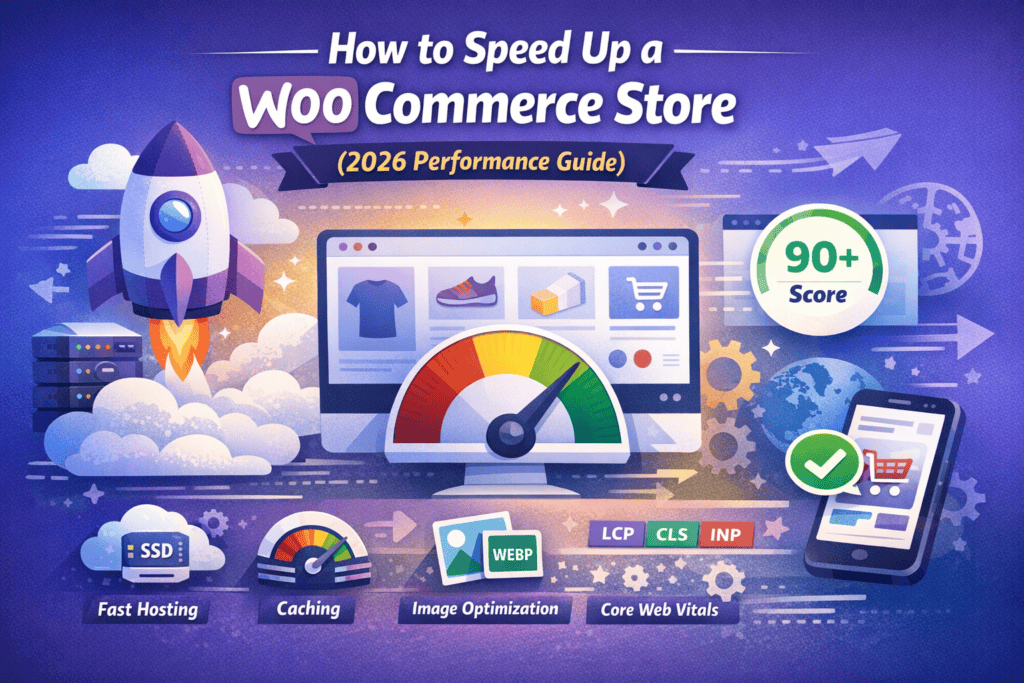
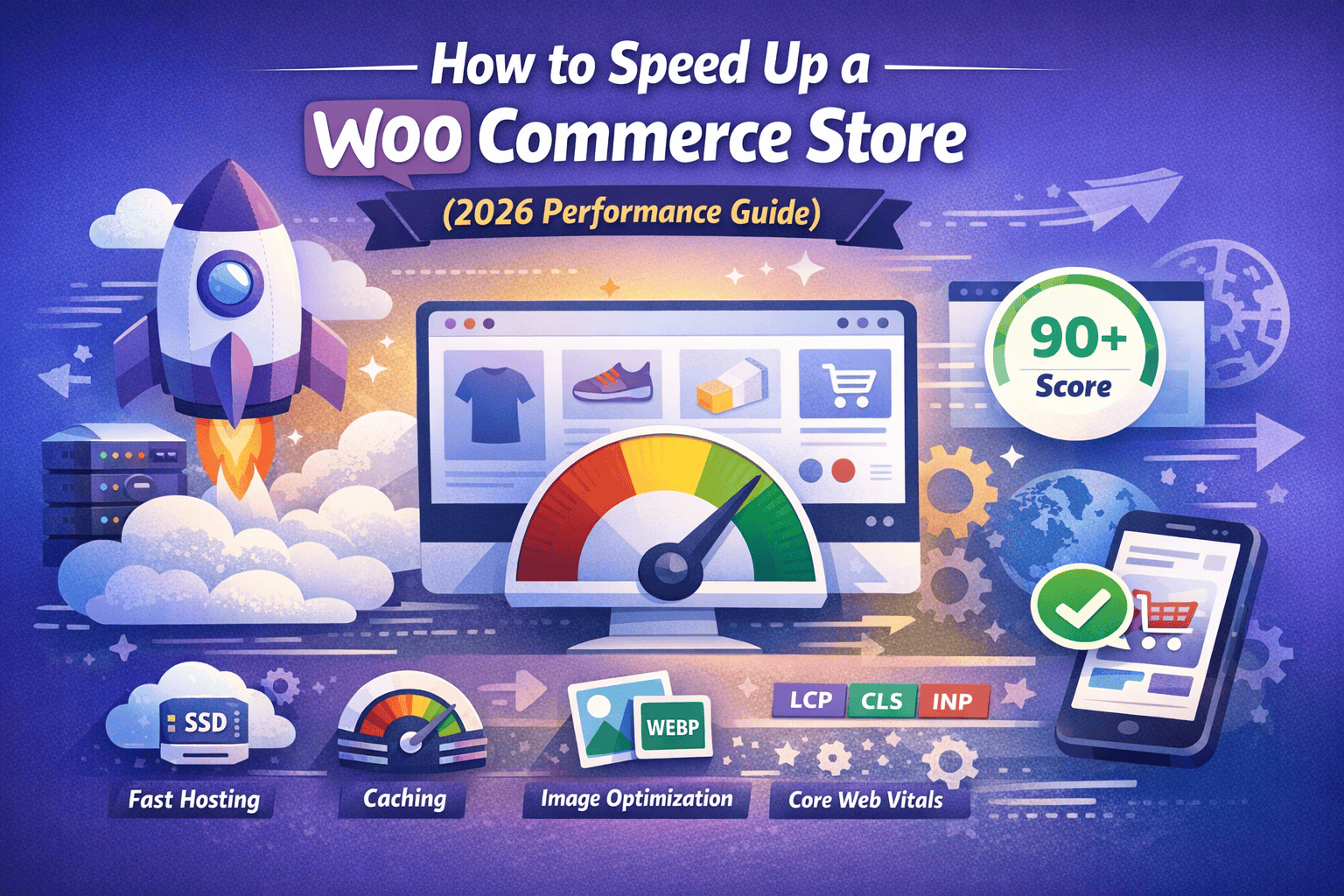
A slow WooCommerce store kills conversions, hurts SEO, and frustrates users—especially on mobile. Since WooCommerce runs on WordPress and handles dynamic data (cart, checkout, sessions), performance needs a slightly different approach than a normal site.
Below is a practical, step-by-step guide you can follow (or implement for clients) to make your WooCommerce store fast, stable, and scalable 🚀
1️⃣ Choose the Right Hosting (This Matters Most)
If hosting is weak, no plugin can save you.
What you should use
- Managed WordPress/WooCommerce hosting
- NGINX or LiteSpeed servers
- Built-in server caching
- NVMe SSD storage
Avoid
- Cheap shared hosting
- Apache-only servers
- Unlimited plans with hidden throttling
✅ Ideal stack
Cloud-based hosting + Redis Object Cache + CDN
2️⃣ Use a Lightweight WooCommerce-Optimized Theme
Heavy themes = bloated CSS + JS + layout shifts.
Recommended traits
- Minimal design
- No bundled page builders you don’t use
- WooCommerce templates optimized for speed
Pro tip
Avoid themes that:
- Load sliders on every page
- Inject scripts globally
- Rely heavily on animations
3️⃣ Configure Caching Properly (Very Important)
WooCommerce pages are partly dynamic, so caching must be smart.
Pages that should NOT be cached
- Cart
- Checkout
- My Account
Pages that SHOULD be cached
- Shop
- Category pages
- Product pages
- Blog pages
Must-have caching layers
- Page cache
- Browser cache
- Object cache (Redis/Memcached)
⚠️ Incorrect caching = broken carts or login issues.
4️⃣ Optimize Images (Biggest Frontend Gain)
Images are usually 50–70% of page weight.
Best practices
- Convert images to WebP
- Resize images before upload
- Enable lazy loading
- Avoid huge gallery images on product pages
Ideal sizes
- Product thumbnails: ~300–600px
- roduct main image: ~1200px max
5️⃣ Reduce WooCommerce Script & CSS Bloat
WooCommerce loads scripts even where they’re not needed.
Optimize by:
- Disabling cart fragments where possible
- Loading WooCommerce scripts only on shop pages
- Removing unused blocks and widgets
Examples
- No need for checkout scripts on blog pages
- No need for cart scripts on About page
This alone can improve CLS and FCP dramatically.
6️⃣ Optimize Product Pages for Speed + UX
Product pages are conversion pages—speed here matters most.
What slows them down
- Too many product tabs
- Reviews loaded instantly
- Heavy related products queries
- Multiple sliders
Speed tips
- Lazy load reviews
- Limit related products
- Reduce product variations if possible
- Avoid auto-play videos
7️⃣ Database Optimization (Often Ignored)
WooCommerce stores a LOT of data.
Clean regularly
- Old transients
- Expired sessions
- Failed orders
- Post revisions
- Orphaned metadata
Also optimize
- wp_options autoload size
- wp_postmeta table
- wp_woocommerce_sessions
📌 A bloated database = slower admin + slower frontend.
8️⃣ Use a CDN (Especially for Global Stores)
A CDN reduces:
- Server load
- TTFB
- Image delivery time
CDN should handle
- Images
- CSS
- JS
- Fonts
For stores targeting multiple countries, CDN is non-negotiable.
9️⃣ Improve Core Web Vitals (SEO + UX)
Google cares about:
- LCP (Largest Contentful Paint)
- CLS (Layout Shift)
- INP (Interaction delay)
Fix CLS by
- Setting image dimensions
- Avoiding late-loading fonts
- Removing layout-shifting banners
Fix LCP by
- Optimizing hero images
- Preloading critical assets
- Reducing render-blocking CSS
🔟 Plugin Audit (Less Is More)
Every plugin adds:
- Queries
- CSS/JS
- Hooks & filters
Do this audit
- Remove plugins doing the same job
- Replace heavy plugins with lightweight alternatives
- Avoid “all-in-one” plugins if you use 20% of features
Final Thought
Speed optimization for WooCommerce isn’t about one plugin—it’s about system-level optimization.
At Trend Web Technologies — Building fast, scalable, and conversion-focused digital experiences.